Marines


G-6 Communication & Information Systems

Marine Corps University Seal - New
Marine Corps University
Quantico, Virginia
user account request

To download and print this process, click HERE.

Step 1:  Complete Cyber Awareness/PII Training (CYBERM0000)

All DoD personnel (military, civilian, and contractors) must complete the annual Cyber Awareness/PII training (CYBERM0000) before requesting an EDU account. If you already have an up-to-date certificate skip to Step 2.

Go to MarineNet:  https://www.mcele.usmc.mil/marinenet/ssologin.aspx?ReturnUrl=/id3/api/redirect?app=aem

For more instructions on creating a MarineNet account go to:  https://portal.mcele.usmc.mil/content/mnet-portal/en/help/help-topics/login.html#hc-b2c0627660370eec (Copy and paste into your browser.)

1. Click LOGIN (top right)/

2. Log in or create a MarineNet account by following the prompts, either by:  

  • Using your CAC to sign in, or
  • Manually entering your information to create an account.

3. Look up Cyber Awareness Training (CYBERM0000) and enroll in training.

Note:  There are two trainings to complete in order to acquire certificate.

  • Department of the Navy Annual Privacy Training (DONPII010A)
  • DoD Cyber Awareness Challenge (DODCAC1000)

4. complete the USMC Cyber Awareness Training (CYBERM0000).

5. Save your CYBERM0000 certificate when finished. You will need it for your EDU account request.

If you have trouble with MarineNet:  Use the MCeLE Help and Frequently Asked Questions (FAQs) links at the bottom of the MCeLE page.


Step 2: Create Your EDU Account Using AutoSAAR

AutoSAAR is CAC-enabled. Before starting, ensure that your CAC is inserted.

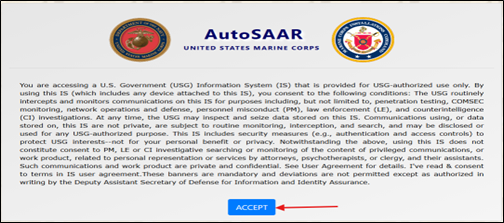
1. Create an AutoSAAR user account https://autosaar.usmc.mil/ (Copy and paste into your browser)

    Click on the  Accept  button
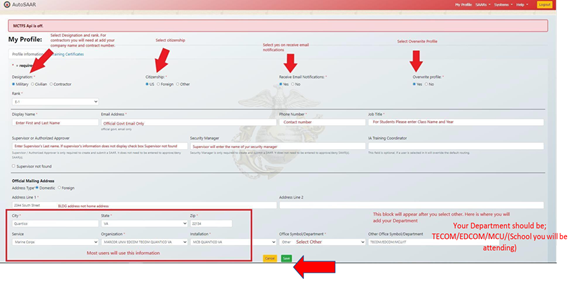
2. Fill out all required information in this section and click  Save . Zoom in on the image attached to this step for more details on how to complete each field.

Note:  While completing the SAAR:

  • List SSgt Patrick Mullins (Patrick.Mullins@usmcu.edu) or Carlton Spicer (Carlton.Spicer@usmcu.edu) as the Security Manager.
  • List your supervisor as the approver. (If you do not select your supervisor, the process will stall.)
  • Your supervisor must log in to AutoSAAR and approve your request.
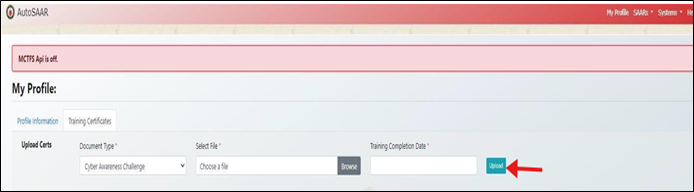
3. Click Training Certificates in the top left, add your Cyber Awareness training certificate, then click  Upload .
 

Step 3:  Submit your edu autosaar

Log onto AutoSAAR portal using the following link below https://autosaar.usmc.mil/

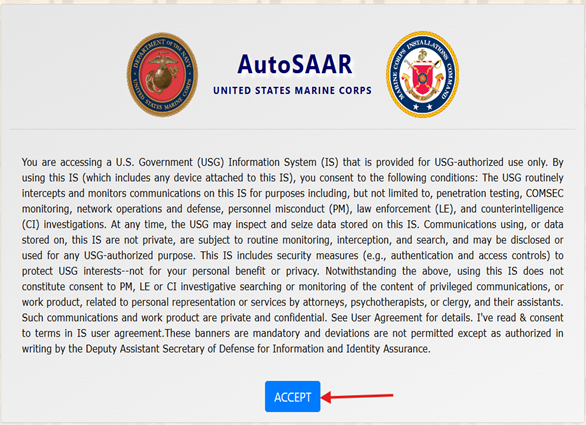
1. Click on  Accept .
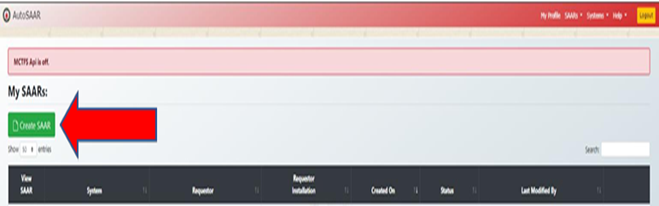
2. Click on  Create SAAR .
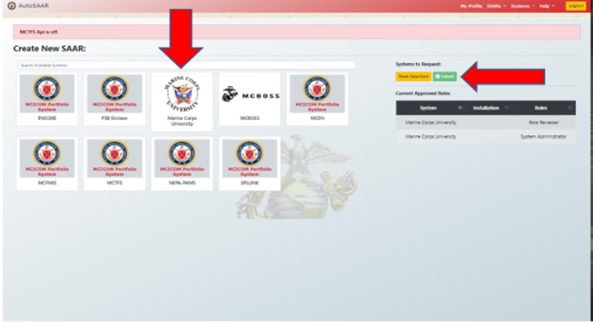
3. Scroll through the organizations and find the Marine Corps University logo, select it, scroll to the top of the page, and select  Submit .
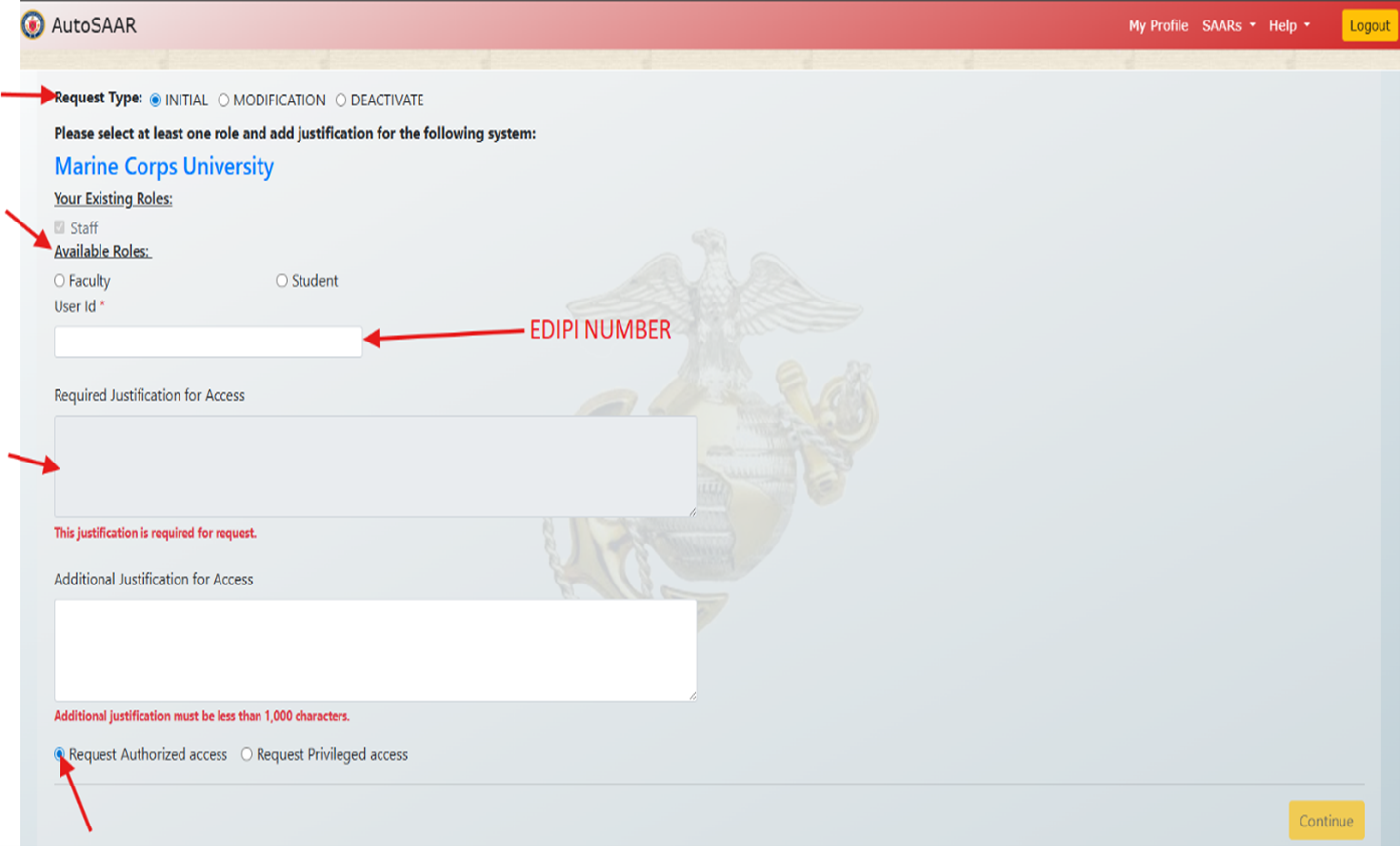
4. Select your request type and role. Then enter your EDIPI number, located on the back of your CAC. Finally, provide your justification for access and click  Continue .
5. Click  Next .
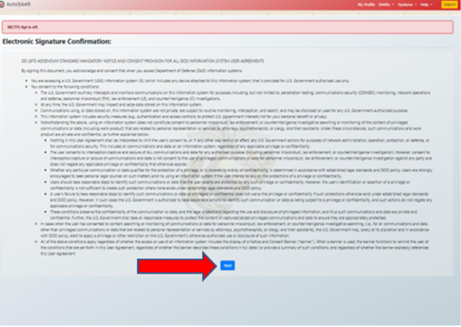
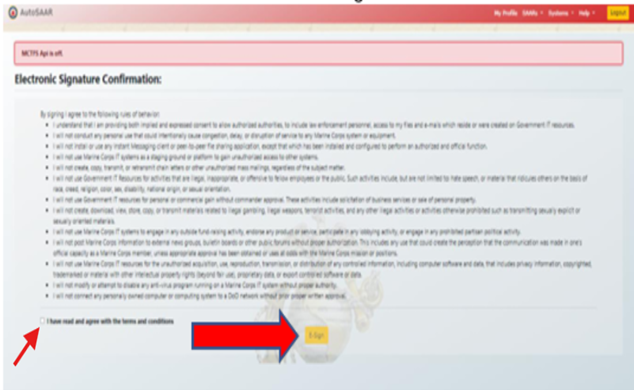
6. Select the checkbox to confirm that you have read and agree to the terms and conditions, then click  E-Sign .
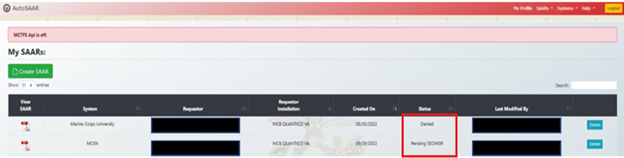
7. You will now be returned to the home screen, where you can track the status of your requests.
If you have issues at any point, contract the MCU IT helpdesk:


Personal Laptop Information

The Marine Corps University (MCU) does have a Bring Your Own Device (BYOD) policy that allows all students to be able to use their own laptops and CAC enabled tablets on the provided wireless (CampusNet) network.

The Marine Corps University Information Technology (MCU IT) Helpdesk can provide handouts and web link for students so that they can walk themselves through the setup process. If the student or staff is unable to properly configure his/her device, a MCU IT technician can assist if no other IT related priorities exist. Please note that the MCU Technology Department will not become liable for information lost or hardware damage.

Cellphone & Tablet Information

The Marine Corps University has a Bring Your Own Device (BYOD) policy that allows Students and Staff members to have their Personal iOS or Android Phones and Tablets configured to access MCU Email, Calendar, and Drive.


         Android Instructions                             iPhone Instructions

Users can contact the Marine Corps University Helpdesk if assistance is needed setting up MCU Email, Calendar, and Drive on their personal mobile devices. Please contact the Helpdesk either through email (mcuhelpdesk@usmcu.edu), phone call (703-432-4866), or walk-in/appointment. The Helpdesk office is located in the Warner Hall, building 2044, in room 1124.


If You Are Having Issue with Your Device Setup
  • Visit the MCU IT Helpdesk office located in the Warner Building Room 1124.

MCEN SYSTEM SUPPORT

The MCU IT Department Technicians DO NOT have any support privileges or elevated rights to assist with MCEN related issues. See below for the Enterprise Service Desk contact information.

The MCU IT Helpdesk or users can contact the ESD for MCEN-N and MCEN-S computer trouble reports and service requests:

  • Phone:  COMM:  855-373-8762 | DSN:  312-465-8079

  • NIPR E-mail:  Enterprise_Service_Desk@usmc.mil

  • SIPR E-mail:  Enterprise_Service_Desk@usmc.smil.mil


13 August 2018 (MCINCR G6 RSD Support)

- Users contacting the MCINCR G6 RSD, by phone, will receive notice to contact the ESD for all MCEN-N and MCEN-S trouble reports and service requests.

- Users emailing MCEN-N or MCEN-S trouble reports to the MCI NCR G6 RSD will receive a response to please contact the ESD to report their trouble.

- Users contacting the MCINCR G6 RSD at 703-784-2111 to report phone or radio trouble or request services will receive service support.

When emailing the Enterprise Service Desk for a MCEN request the questions that require answers to create a ticket in Remedy are:


Marine Corps Workstation Incident Template

Domain (MCEN-N/S/L):

>>Verify / Update Customer Information<<

**********Customer Info******************************

Cx Name:

Rank:

Base:

BLDG #:

Room #:

Major Command:

Department / Section:

Phone Number:

E-mail:

Alternate POC:

**********CI DETAILS*********************************

Computer / Device Name:

IP Address:

Asset Tag:

Service Tag:

Make / Model:

Network Domain:

Operating System:

Bldg / Floor / Room / Cube / Port:

>>RELATE CMDB CI<<

************Description of Problem*******************

Error Message or Symptom:

ERROR:  State error exactly or attach screenshot.

FREQUENCY:  How often?

CAUSE:  Any recent changes that may have contributed?

START:  When did the issue begin?

>>MAJOR INCIDENT?

>>RELATE ASSOCIATED TICKET<<

**************Troubleshooting***********************

Troubleshooting steps taken:

**************Additional Information*************

MarineNet and Moodle

The MCU IT Helpdesk DOES NOT support or provide assistance with MarineNet or Moodle. If users are experiencing issues with MarineNet or Moodle, please contact CDET.


CDET's Information

Location:  Breckenridge (Building 2076)
Floor:  Basement
Room:  067
Phone:  888-435-8762
Email:  cdet.student_support@usmc.mil